
Have you ever tried to play a video, only to get an error message saying the format isn’t supported? It’s frustrating, especially when it’s a favorite clip, an important project, or a memory you want to revisit. The good news is, you’re not alone, and there’s an easy fix.
With the right tools and a few simple steps, you can turn almost any video format that works on your device. Converting files like WMV to MP4 or MOV to MP4 can help you avoid these problems for good. Keep reading to learn how to make every video playable, no matter what device you’re using.
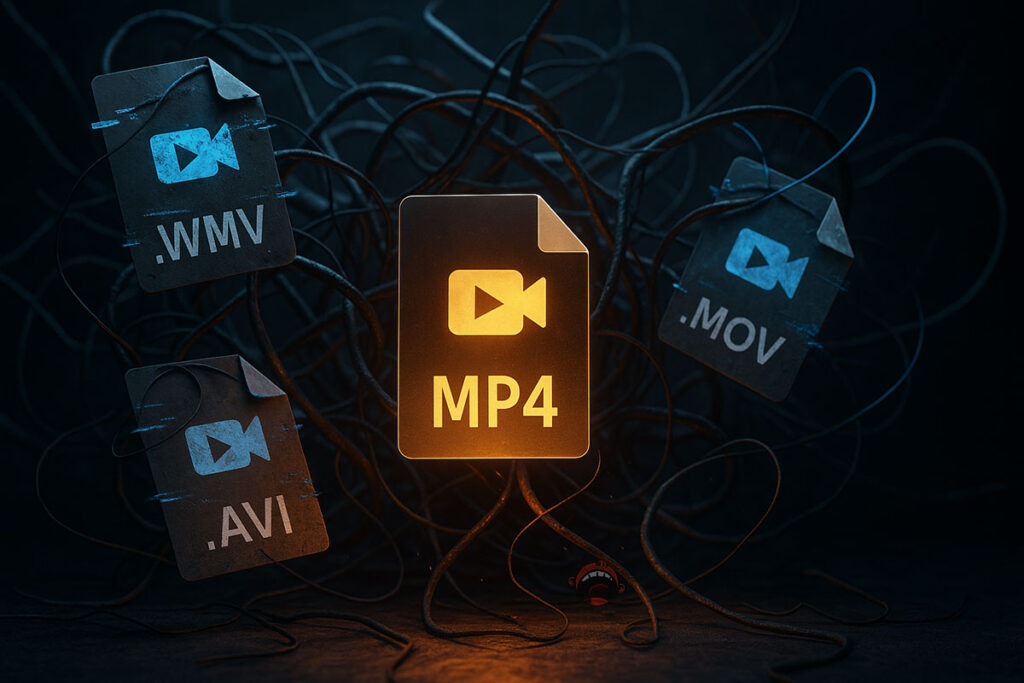
Understanding Unsupported Video Formats
Facing an unsupported video format means your device or media player can’t open or play the file. This happens when the system doesn’t recognize the file type or lacks the right software to run it. Each device has its own set of supported formats, depending on its operating system and built-in tools.
For example, Windows often works well with WMV or AVI, but it may not open MOV files from Apple without extra help. Android phones might also struggle with videos that use uncommon codecs or high-end file types. Understanding your device’s capabilities will expedite fixing these issues.
Common Causes of Unsupported Video Formats
There are a few reasons why a video file might not play on your device. One of the most common issues is outdated software. An outdated media player or operating system may lack the tools required for newer video formats.
Missing codecs are another big cause of playback problems. Codecs are like translators that help your device understand the video file. Without the right one installed, your video may not load at all.
Sometimes, the problem is with the file itself. A video may become damaged during download or transfer, rendering it unreadable. In other cases, a file might have an unsupported extension, even if it looks similar to other playable formats.
Solutions for Fixing Unsupported Video Formats
Here are several effective solutions to resolve unsupported video formats:
1. Update Your Media Player
Regularly updating your media player is one of the quickest methods to solve playback issues. Well-known programs like VLC and Kodi regularly release updates that include support for newer video and audio formats. These updates not only patch bugs but also enhance overall performance, creating a smoother playback experience.
Visit the official website of your media player to check for the latest version. Downloading and installing the most recent update can immediately solve compatibility problems with many file types. This step often negates the need for file conversion.
2. Install Necessary Codecs
If updating your media player doesn’t fix the issue, try installing the right codecs. Codecs help your device understand and play different video formats. A good option is the K-Lite Codec Pack, which works with many popular file types.
Once the codec pack is installed, restart your device. This helps apply the changes and ensures everything runs smoothly. After rebooting, open your video file again-it should now play without problems.
3. Convert Video Files
Often, the most effective solution is to convert your video file to a more compatible format for your device. Many free tools and apps can help with this, both online and offline. They let you choose a format that plays on most players without errors or delays.
One common example is changing a WMV to MP4. MP4 is widely supported and works on phones, computers, and tablets. With a few simple steps, you can make your video easy to play anywhere.
4. Consider Using Third-Party Players
If problems with unsupported video formats persist, switching to a third-party media player can be an effective solution. VLC Media Player, in particular, is known for its broad compatibility and ability to handle a wide range of file types without needing additional codecs. Its open-source nature ensures frequent updates and ongoing support from a large developer community.
VLC is available for Windows, macOS, Linux, and mobile operating systems, making it a reliable choice across devices. Its user-friendly interface and advanced playback features attract both casual users and professionals. For those experiencing frequent playback errors, VLC provides a reliable and stress-free alternative.
Best Practices for Avoiding Unsupported Video Formats
To circumvent problems with unsupported video formats, consider adopting some best practices:
1. Choose Compatible Formats
When recording or downloading videos, choose common formats like MP4, AVI, or MOV. These formats are supported by most devices and media players. Using them helps prevent problems when trying to play your videos later.
2. Keep Your Software Updated
Keep your device’s apps and software up to date to get the latest features and fixes. These updates can improve your device’s handling of video formats. Staying current can help you avoid issues with unsupported files.
3. Use Reliable Sources
Downloading videos from trusted sources helps reduce the risk of corrupted or damaged files. Use reputable platforms that uphold quality and security standards. Always verify that the file format is supported by your device to avoid playback issues.
When to Seek Professional Help
While many unsupported video format issues can be resolved with the solutions mentioned above, there might be instances where professional help is necessary. If you’re consistently encountering playback failures across numerous formats, it may indicate that your device has a more significant underlying problem.
For persistent playback issues, consulting with a tech expert can provide insight into potential hardware or software solutions. This might involve inspecting your device’s settings, software configurations, or even its hardware to ensure everything is functioning as it should.
Take Control of Your Video Playback
Unsupported video formats shouldn’t stop you from watching the content you enjoy. With simple tools such as file converters, player updates, or codec installation, you can quickly resolve playback issues. These small changes make a big difference and help you watch videos without stress.
Start using these tips today so you don’t miss out on important clips or moments. Take charge of your videos and enjoy smooth playback every time. For more simple and helpful guides, check out the rest of our blog.
Disclaimer: This article is for informational purposes only and reflects general practices for resolving video playback issues. If any products, tools, or services are mentioned, they are provided as examples and do not constitute endorsements.

